On-the-Spot Client Renders
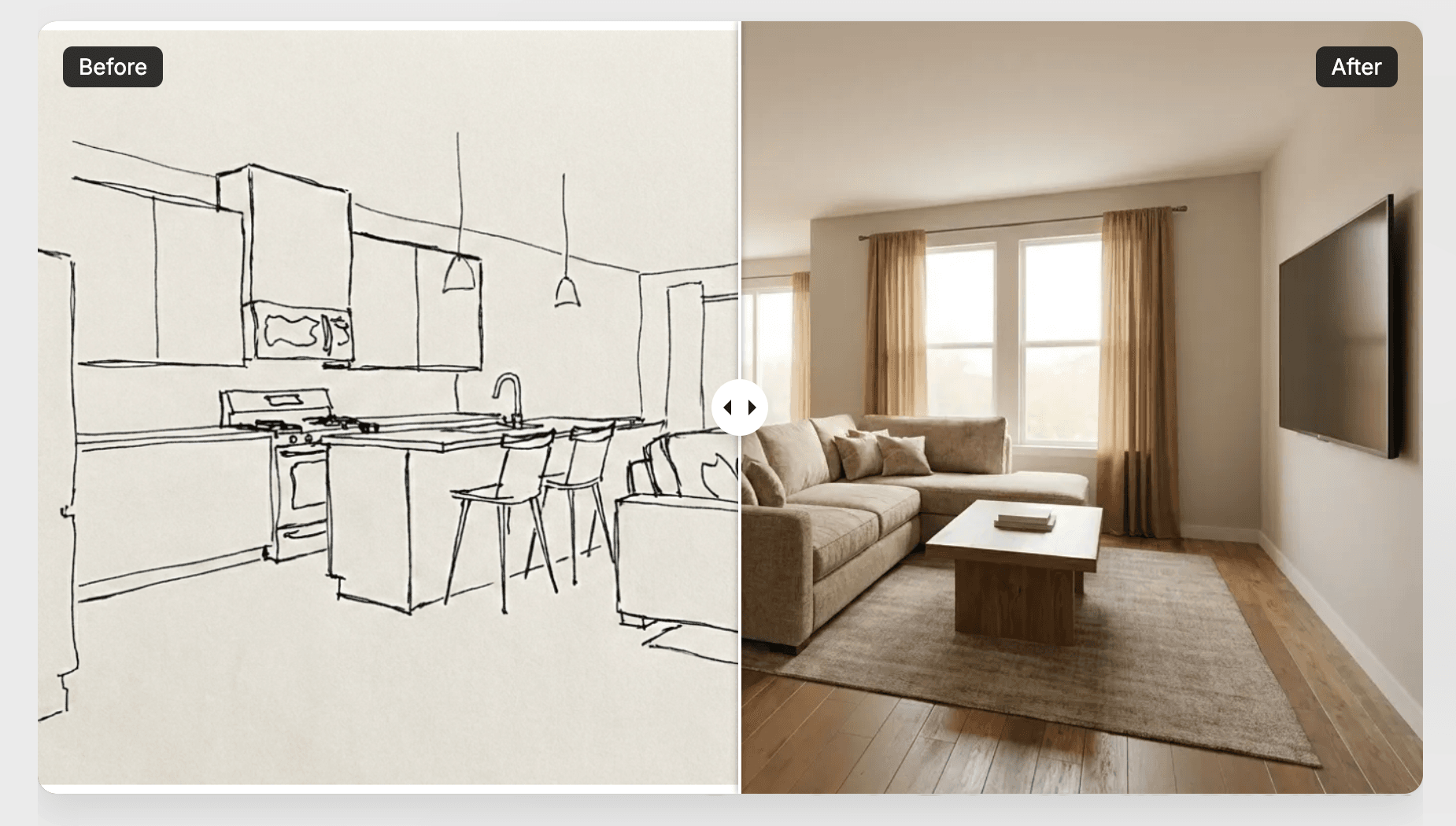
1. Zero-Effort Prompting
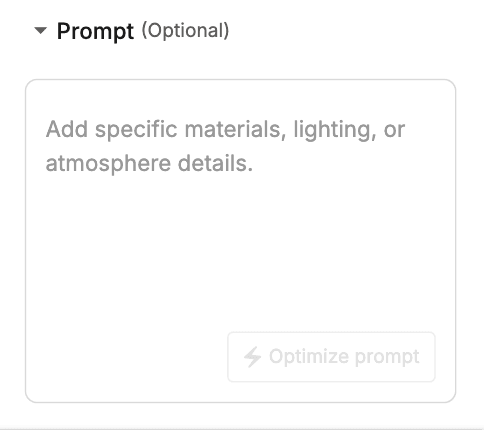
You don't need to be a prompting expert—archix.ai handles the technical side for you. Treat the prompt input box like a simple notepad for keywords rather than a space for perfect sentences.
How to Add an Additional Prompt
- Select your UI dropdowns (Input Type, Style, and Lighting).
- Type in the client's ideas as simple sentences or bullet points.
- Click Optimize Prompt, then click Generate.
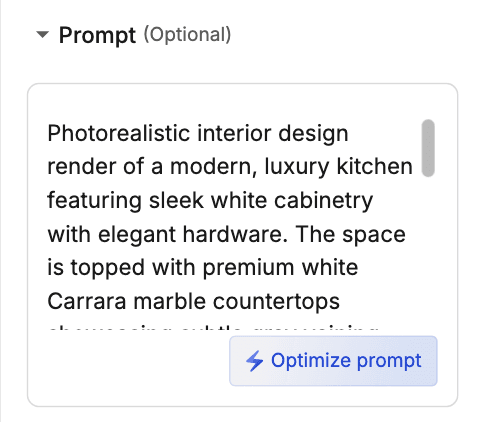
- Example of what you type:
white cabinets, marble top, dark wood floor, lots of light - The Result: The system automatically cleans up your prompt and creates a polished, detailed prompt for a more accurate result.
2. Translate Spoken Keywords to Prompts
When your client uses vague descriptions, type these simple design directions into the prompt box before clicking Optimize:
| When the Client Wants... | Type This Simple Style |
|---|---|
| "Clean, high-end, or luxury" | Modern contemporary design |
| "Cozy, warm, or natural wood" | Modern Japandi style |
| "Bright, open, or minimalistic" | Scandinavian design |
| "Traditional, classic, or timeless" | Traditional classic style |
3. On-the-Spot Revisions
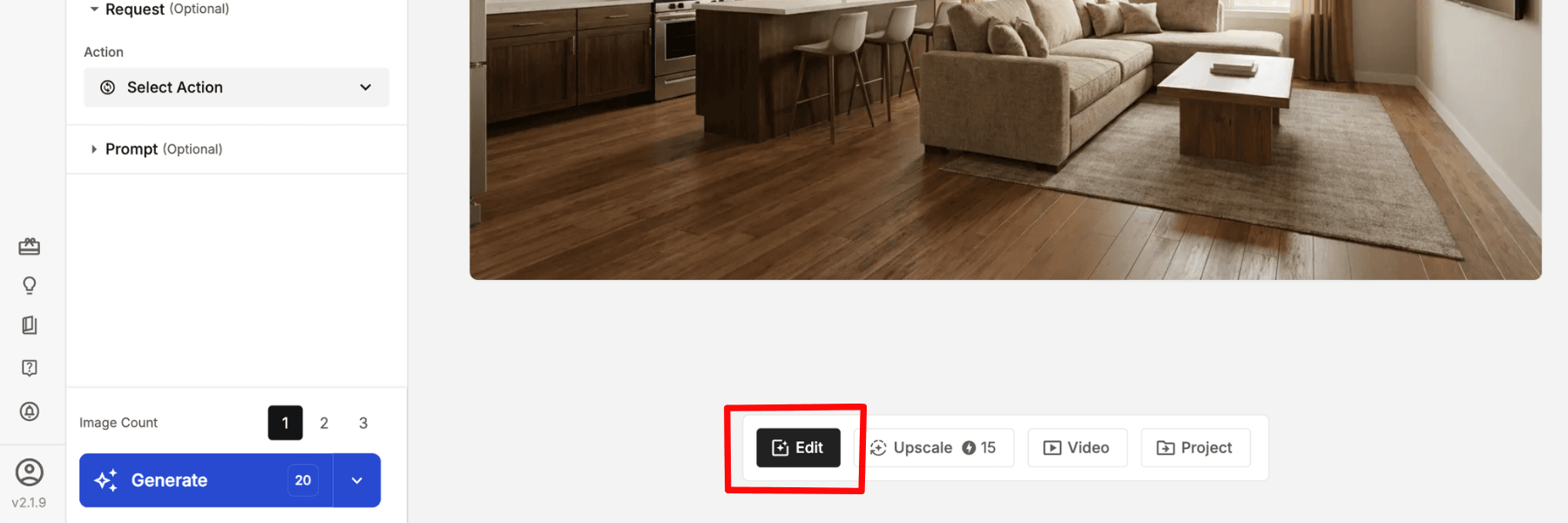
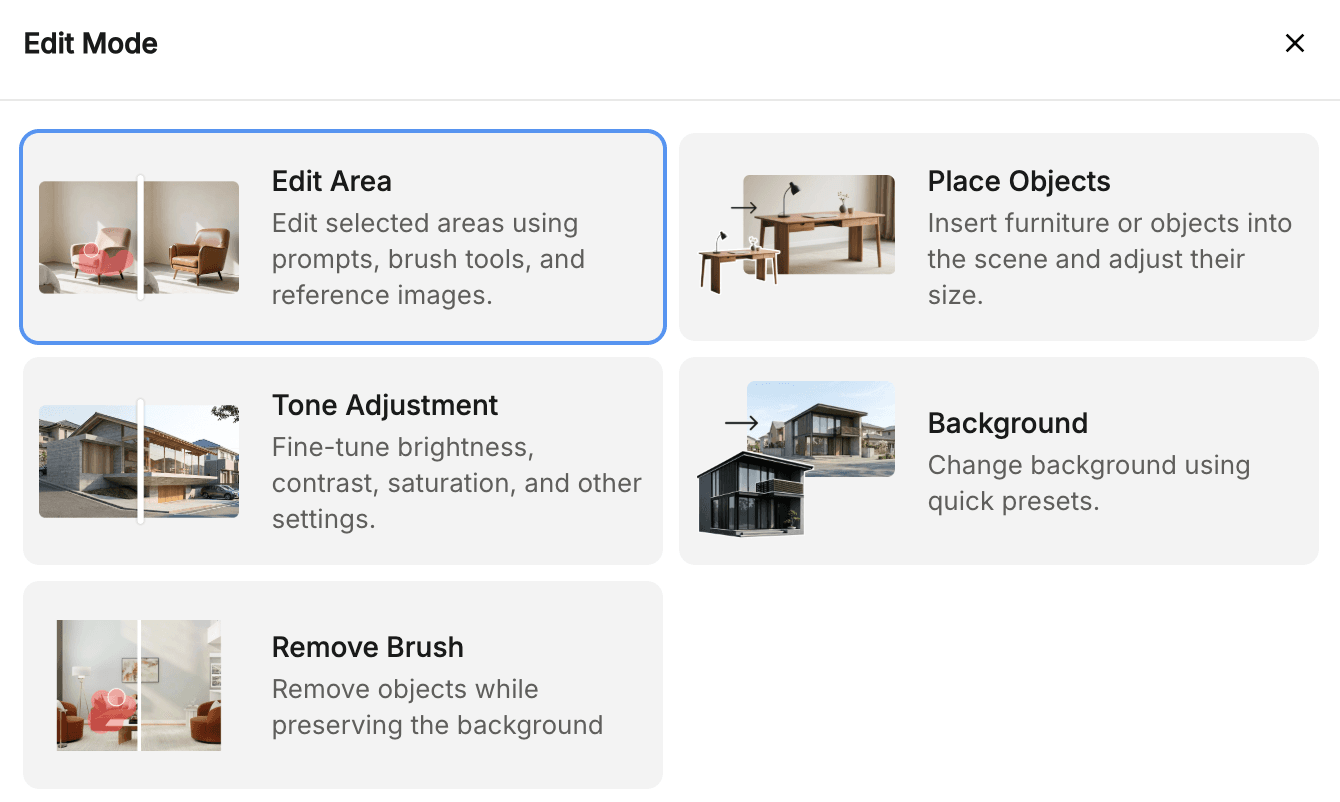
When a client requests a change mid-meeting, toggle Edit Mode and use the Edit Area Brush to highlight the target area. Use these configurations to quickly apply their feedback:
- To Swap a Floor: Select the Retexture dropdown, type:
Light oak hardwood planks - To Paint a Wall: Select the Recolor dropdown, type:
Muted olive green paint - To Change Furniture: Select the Replace dropdown, type:
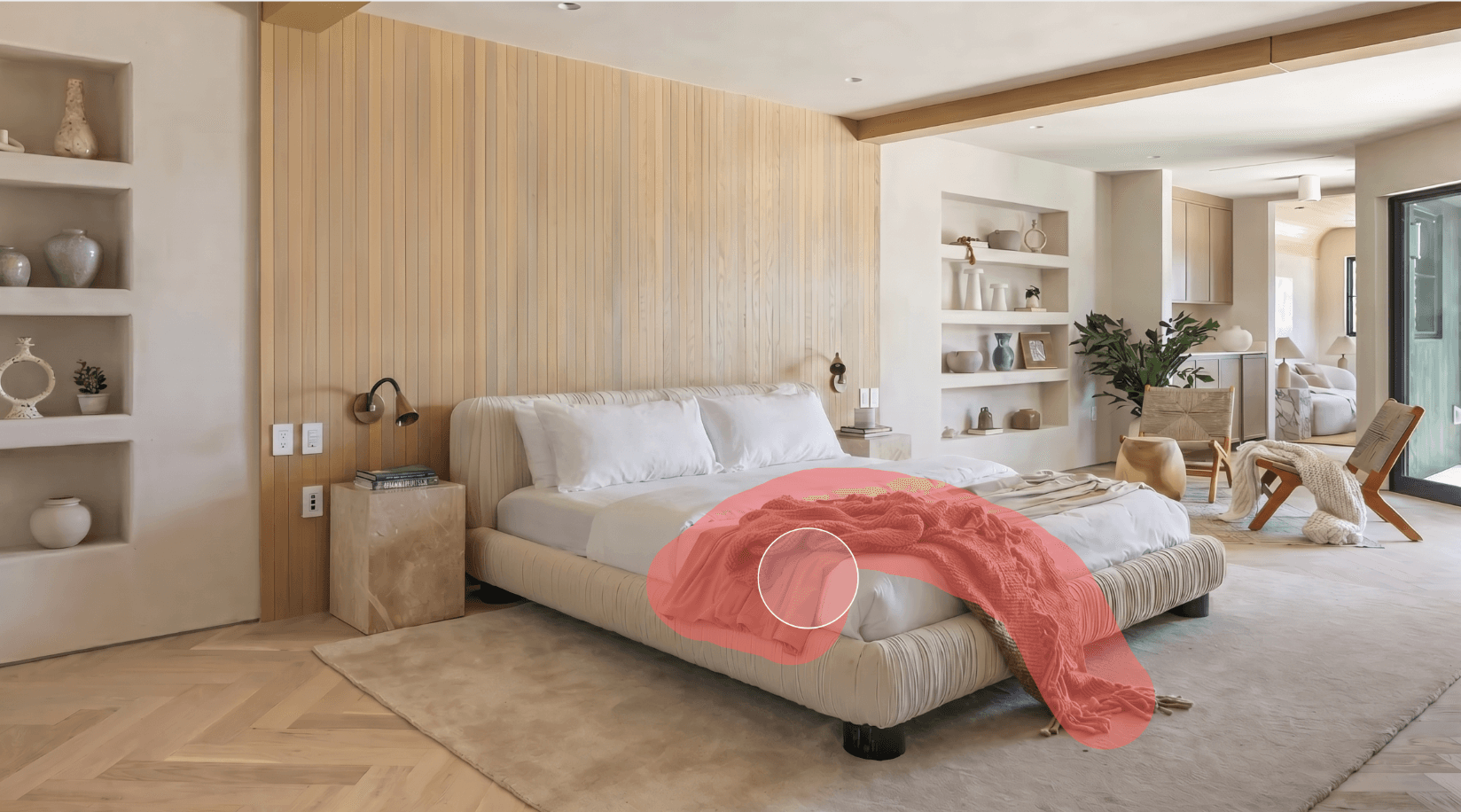
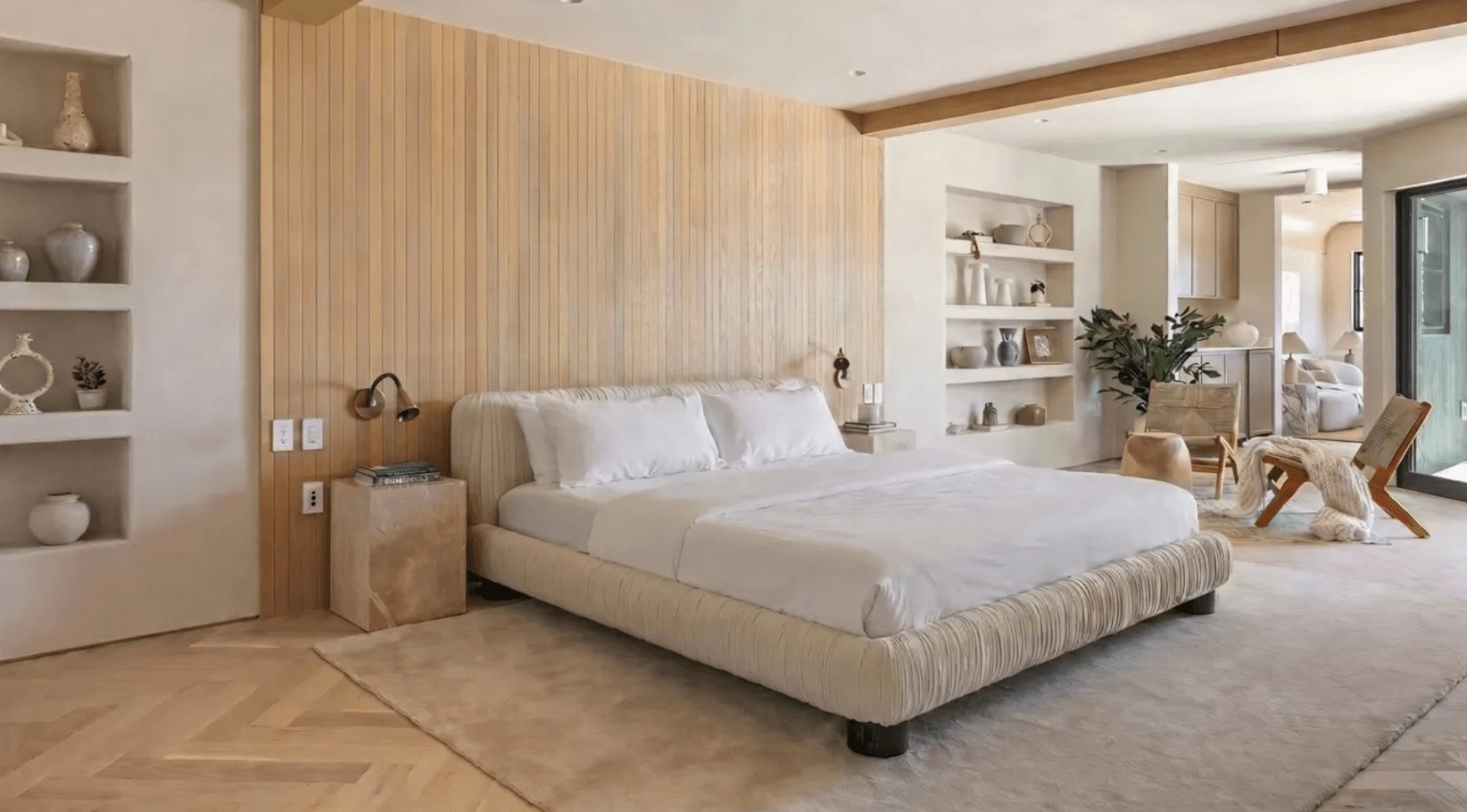
Modern tan leather armchair - To Erase Clutter/Errors: Select the Remove Brush tool, leave the text completely blank.
4. Managing AI Artifacts
Because the AI generates hyper-realistic images in real time, it may occasionally warp a line or distort an object. Do not try to hide it—use it as an opportunity to showcase the speed and control of the platform's live editing tools.
The Action Plan
- Select the Remove Brush.
- Highlight the glitch, leave the text input completely blank, and click Generate.
- The system cleans up the artifact in seconds, proving how effortlessly feedback can be incorporated live.