
Projects and Storage
Storage is where all your work lives: your projects, your folders and every image you've generated or uploaded. Open it from the Storage icon in the sidebar, or click Open storage inside a project.
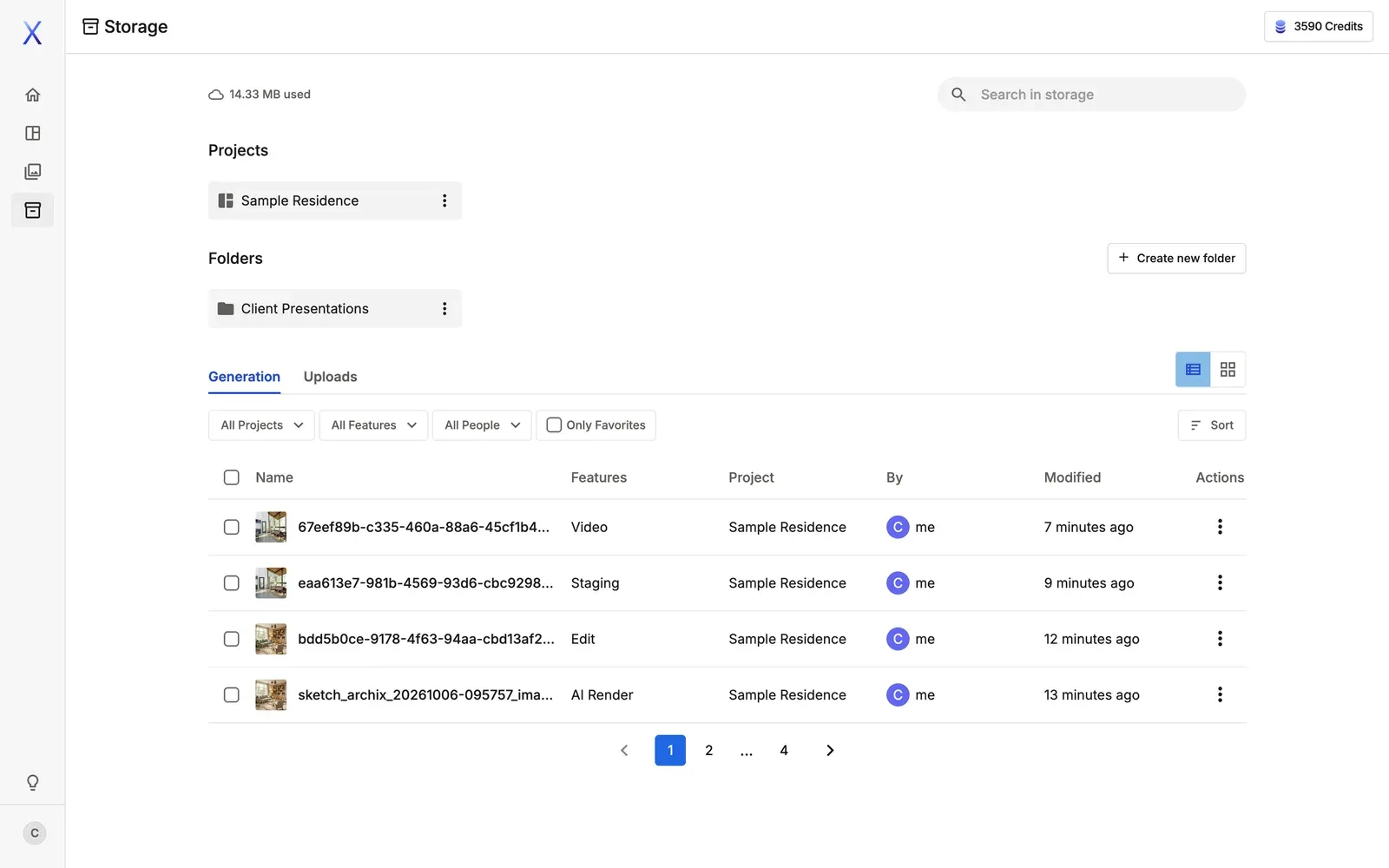
What's in Storage
- Projects: Every project you've created or been invited to.
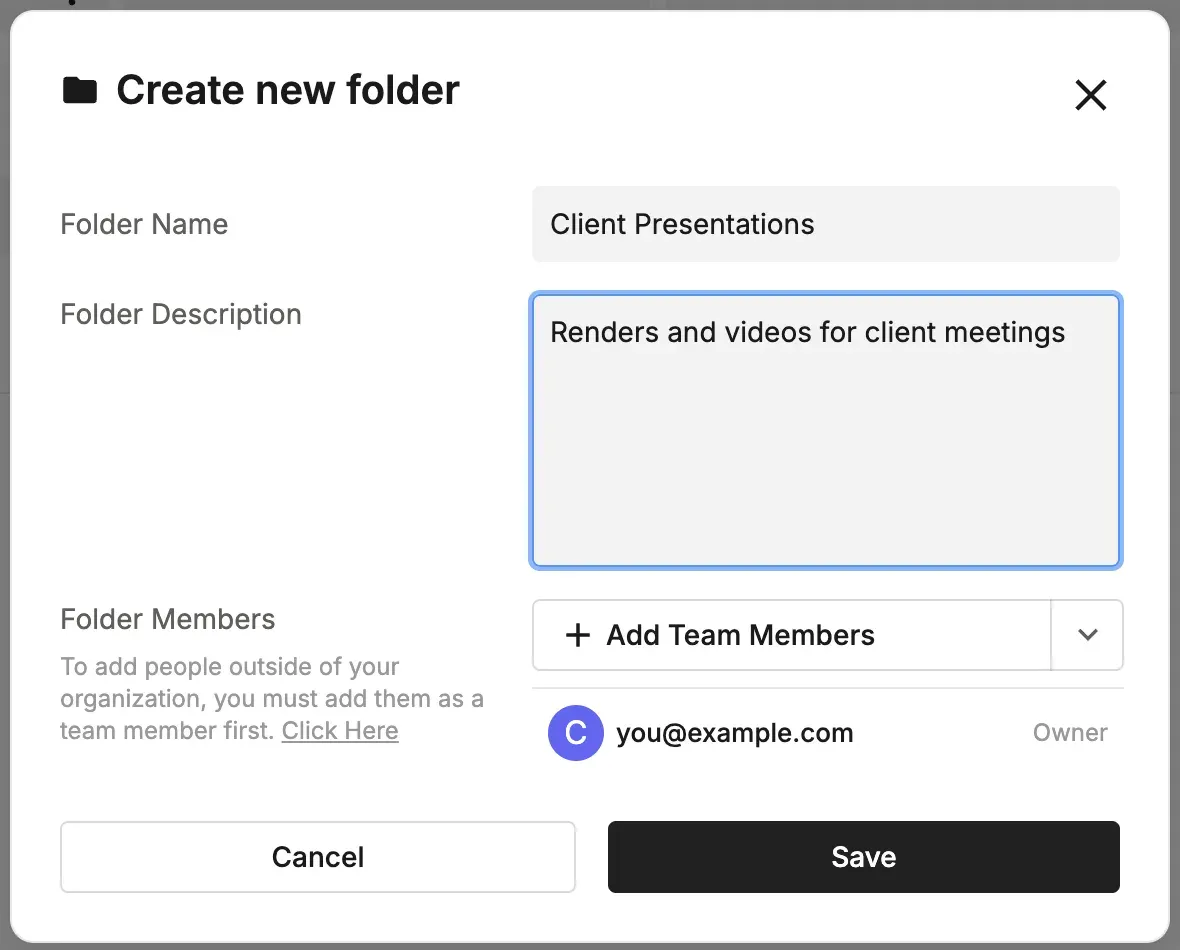
- Folders: Group files for a job or client. Click Create new folder, give it a name, a description and members, then click Save. Files you upload to a folder can be referenced in AI Chat, AI Note Taker and image generation.
- Generation and Uploads: Lists of your generated and uploaded files. Filter by project, feature or person, show only favorites, sort, and switch between list and grid view.
- Search in storage: One search box finds projects, folders and files.
- The amount of storage you've used is shown at the top left.
Supported upload formats are PNG, JPG, JPEG, WebP and HEIC (iPhone photos are converted automatically).
💡 Tip: Create a project or folder for each job. It keeps your work from getting scattered, makes it easier to find later, and makes sharing with your team simpler.