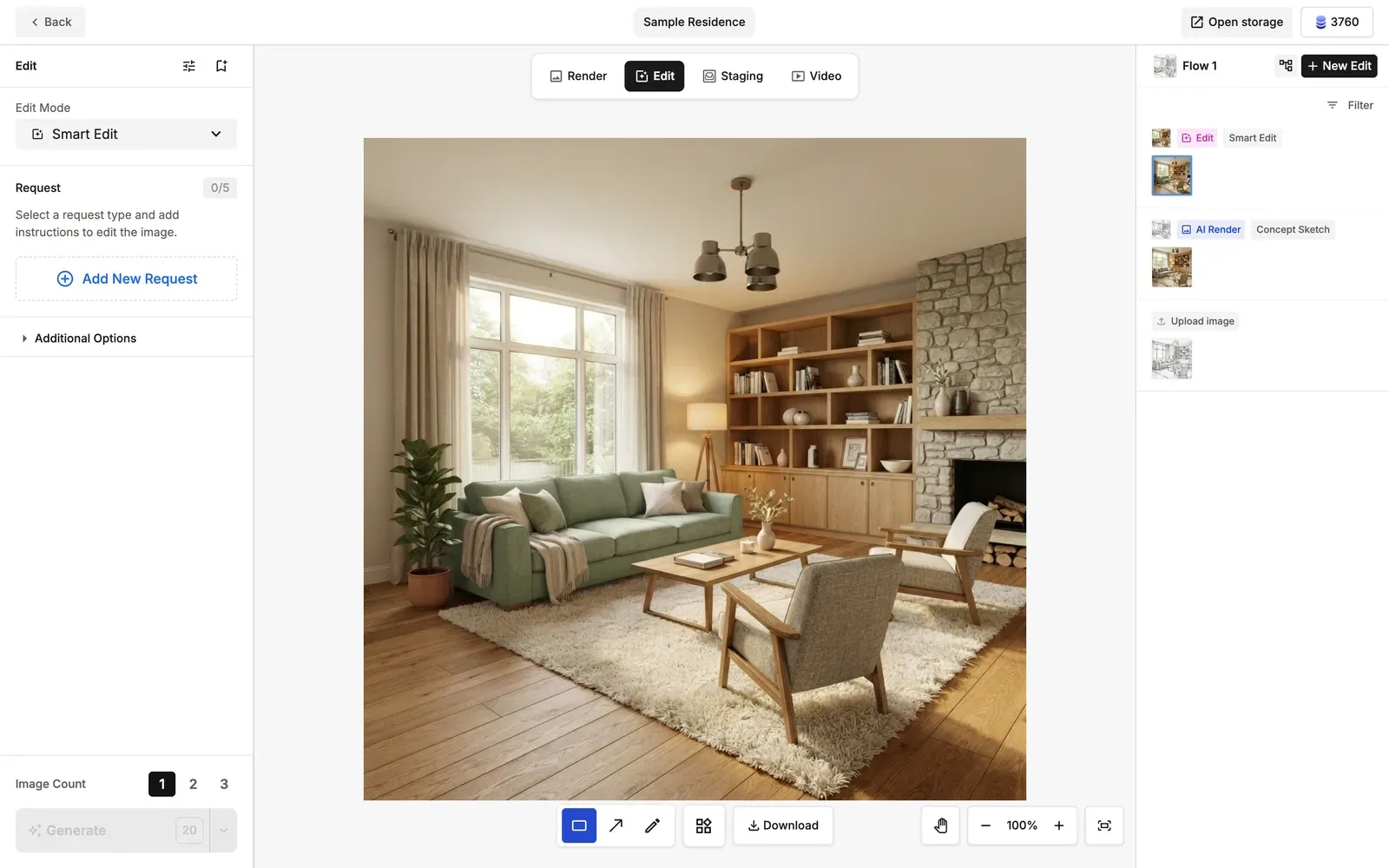
Smart Edit
An intuitive AI editing feature where you draw directly on the image to give instructions.
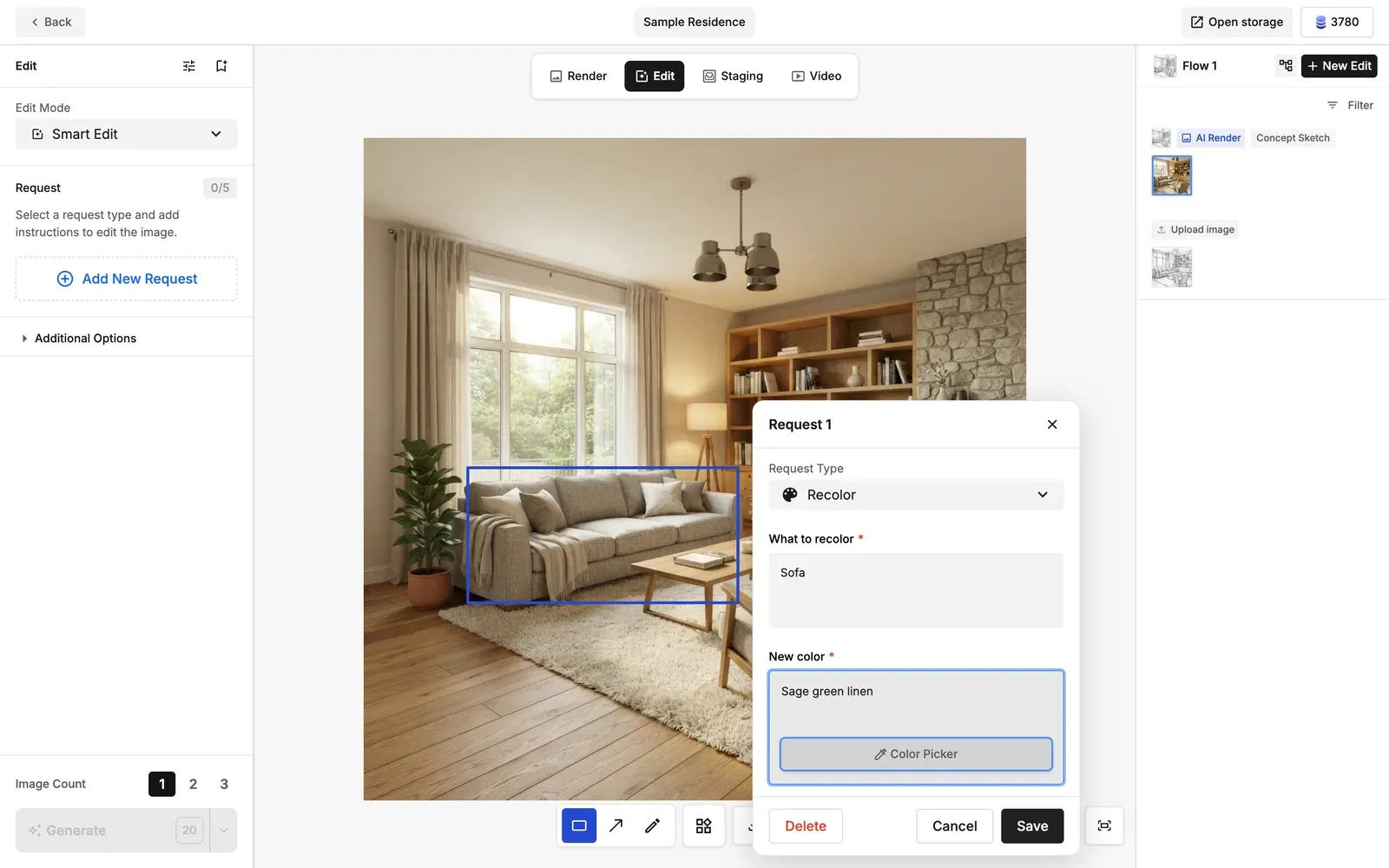
Place drawing shapes on the image (Rectangle, Arrow or Free draw), and write a specific instruction (Request) for each area. The AI then edits exactly the places you marked.
The request types are Custom, Replace, Add, Remove, Recolor, Retexture and Retain.
Instead of a single instruction at a time, you can run edit instructions for up to 5 areas at once.
How to Use
- Specify the area or position: Choose a shape on the canvas (Rectangle, Arrow or Free draw) and mark the area you want to edit.
- Choose a Request Type: For each automatically numbered annotation, choose what you want to do (Replace, Add, Remove and so on).
- Enter details or attach a reference image: Describe the details in text, or attach a reference image if needed.
- Generate all at once: Click the Generate button, and all annotations are processed together by the AI as one job.
For a full walkthrough with a screenshot of each step, see Quick Workflow: Smart Edit Step by Step in AI Image Editor Basics.
3 Drawing Shapes
Choose from 3 shapes to draw, depending on the area you want to edit. Each annotation you draw automatically gets a number badge.
- Rectangle: The default. Draws a box around a large area to edit.
- Arrow: Points to a specific element or position.
- Free draw: Freely trace complex shapes or curves to specify them.
💡 Tip: In Smart Edit, you can assign a different Request Type (such as Replace or Remove) to each annotation you draw.