
Style (Realistic/Watercolor/Sketch/Marker)
Choose the style of the finished image.
Use Style in the Output Specs to choose how the result should look. With the standard input types (Photo, CG Render and so on), you can choose from these 4 options.
Below the styles, Add Reference (shown for Interior projects) offers ready-made style presets, such as Nordic Design, Japandi or Wabi-Sabi. You can also upload your own reference image. Choose one and click Apply Style to guide the look of the result.
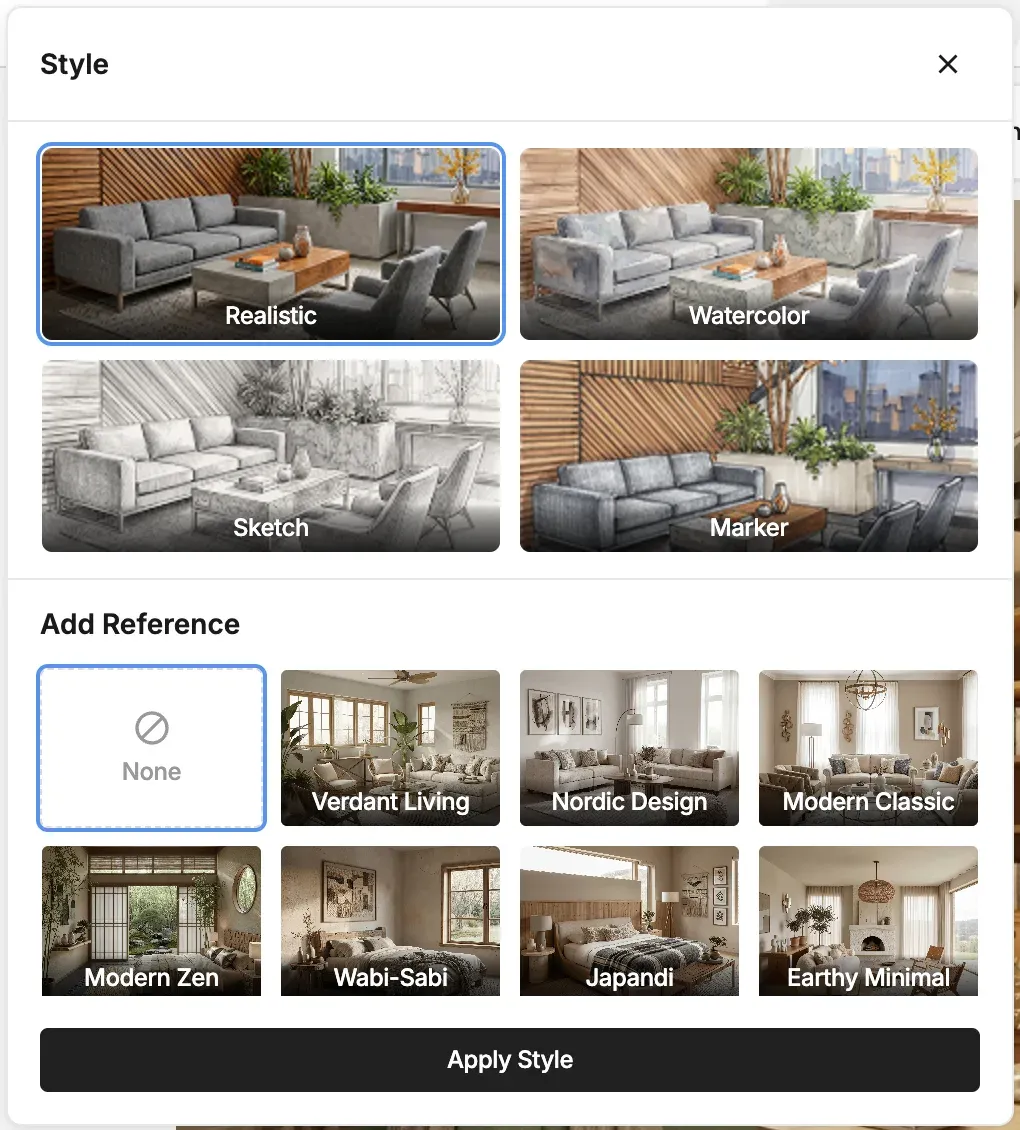
Styles You Can Choose
- Realistic: A photorealistic style that looks like a real scene (default).
- Watercolor: A soft style that looks like a watercolor painting.
- Sketch: A line-drawing style that looks like a pencil drawing.
- Marker: A bold, pop style that looks like it was drawn with markers.
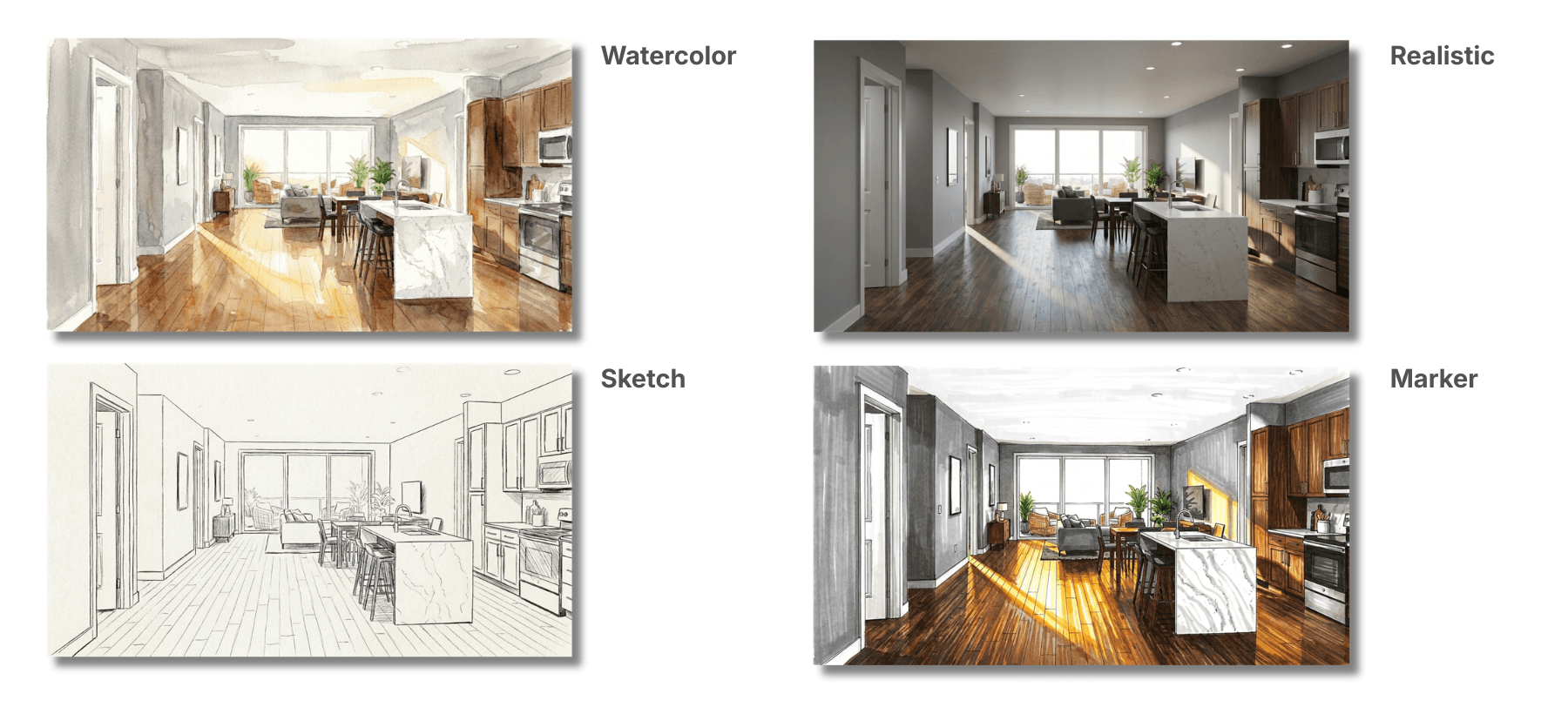
Note that the Style options depend on the input type: CG Render offers Realistic and Sketch, Mockup offers Realistic and Watercolor, and Floor Plan and Elevation plan have their own options (see their pages). Lighting is hidden when you choose Sketch or Marker.
💡 Tip: Realistic works best for final proposal visuals, and Sketch suits the rough early stages.