
Video Mode 2: Start & End Frames
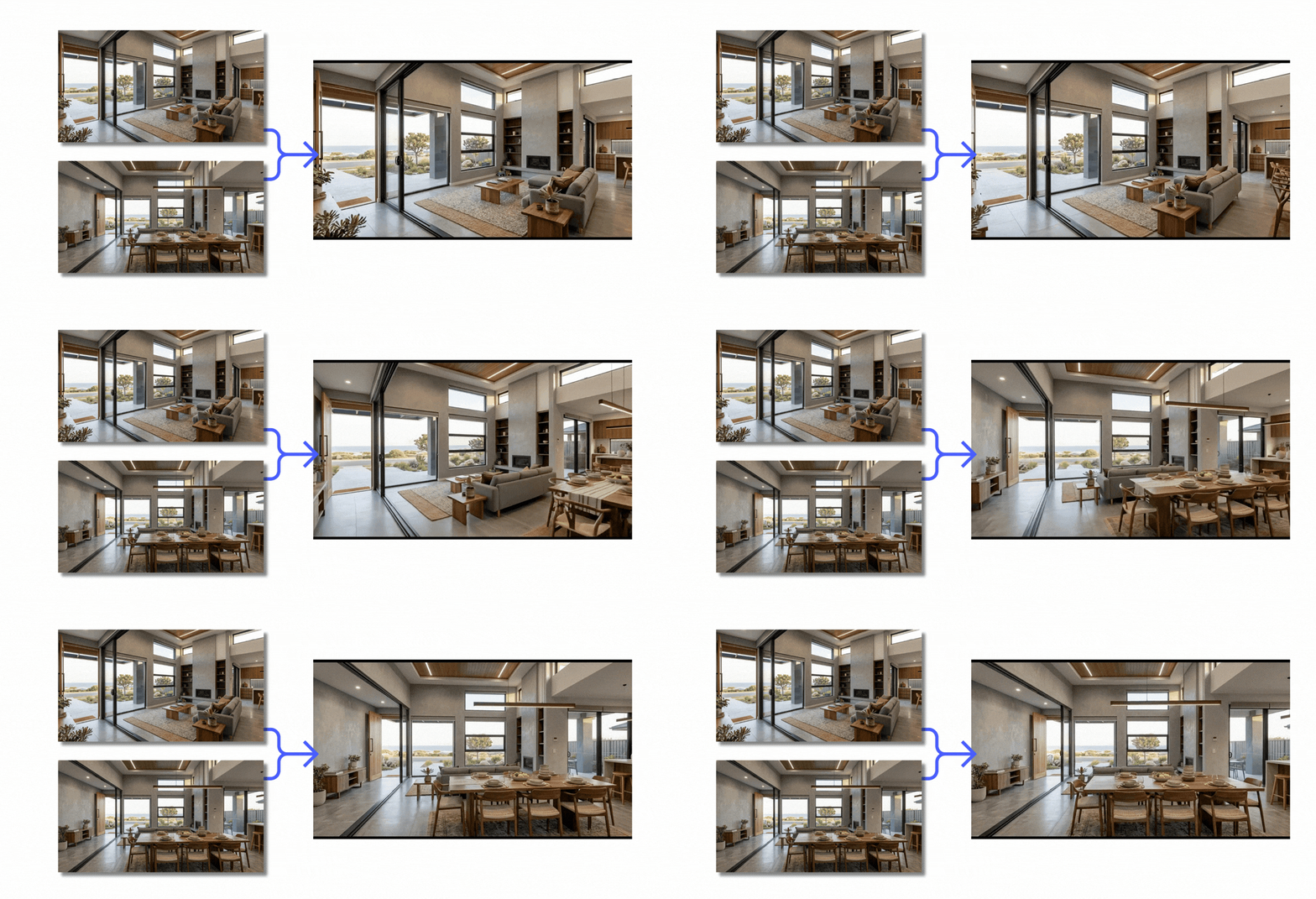
Interpolate between two images to create a video with a scene transition.
Start & End Frames is the mode where you upload two images, a start and an end, and the AI fills in the motion between them. You can create videos that tell a story, with a scene transition.
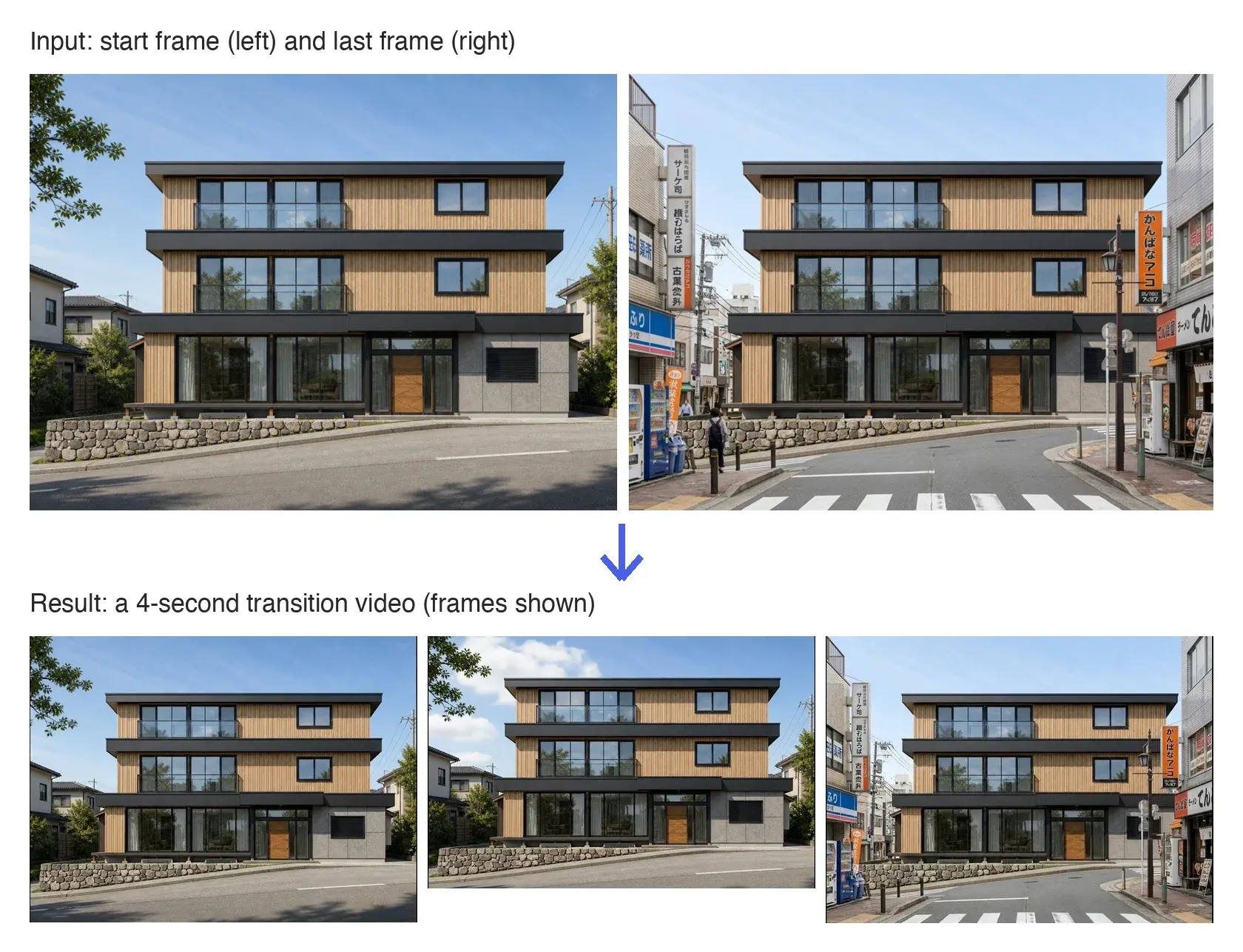
How to Use
- Open AI Video: On Home, click the AI Video tile, or open the Video tab in a project.

- Choose the Video Mode: Select Start & End Frames.
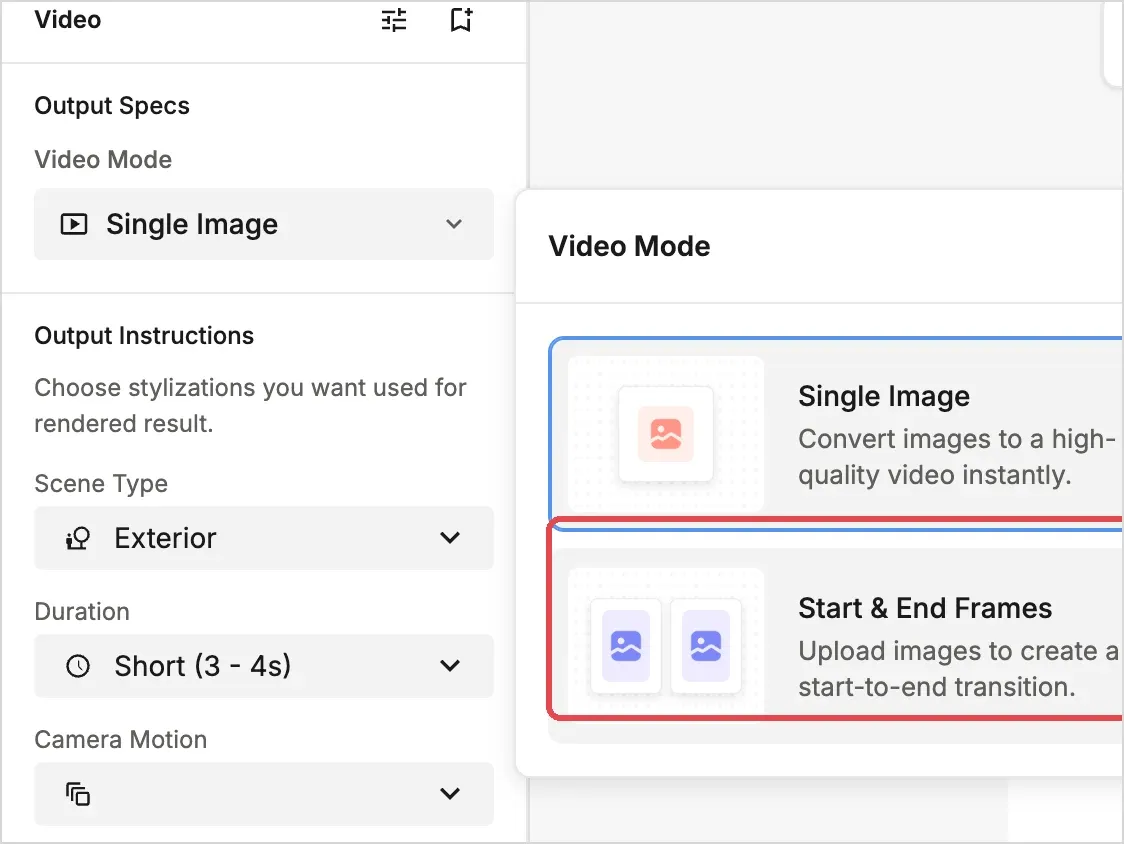
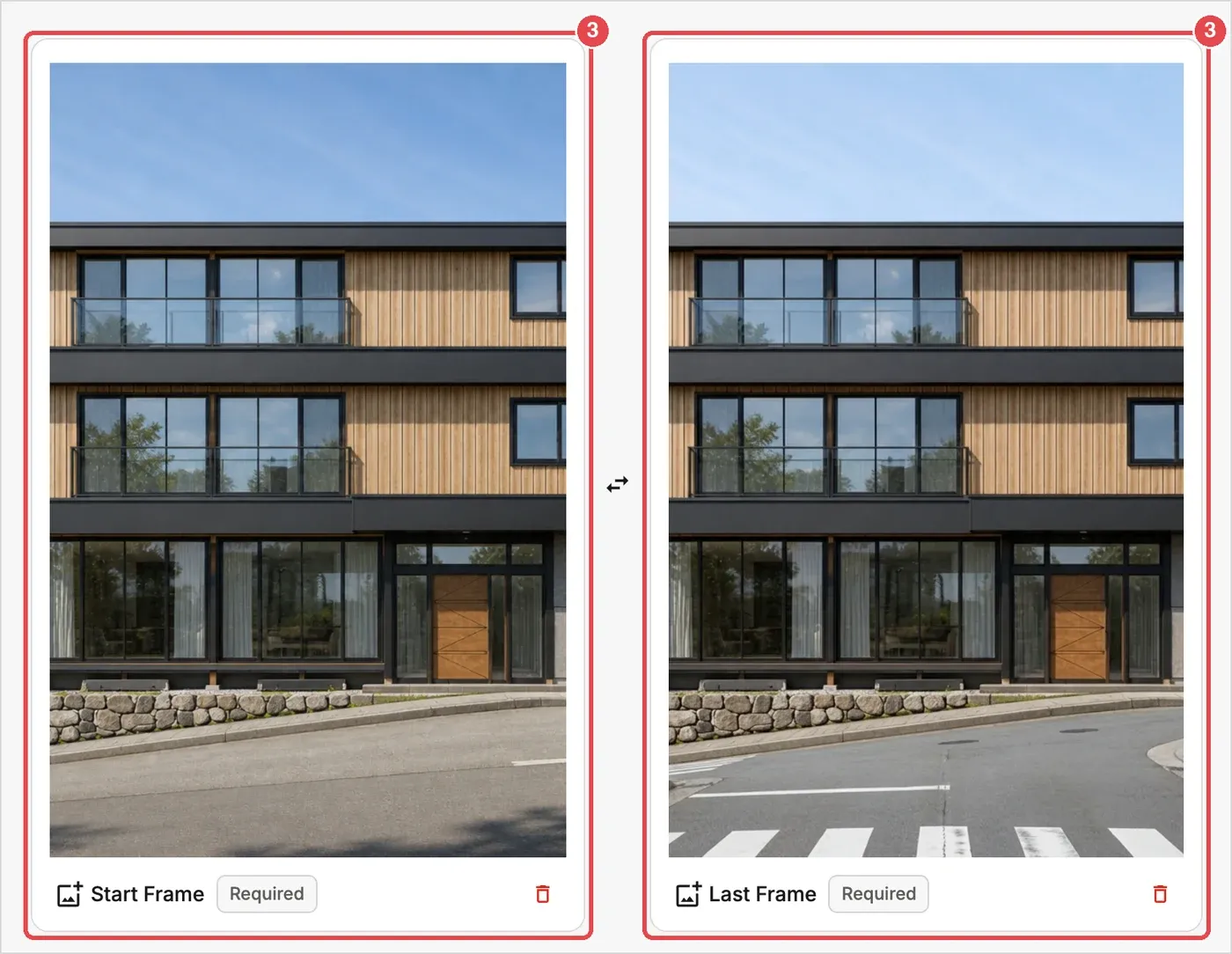
- Upload the two frames: Drag and drop (or click to browse) the Start Frame and the Last Frame. JPG, JPEG, PNG or WebP, up to 10 MB each. The arrow button between them swaps the order.
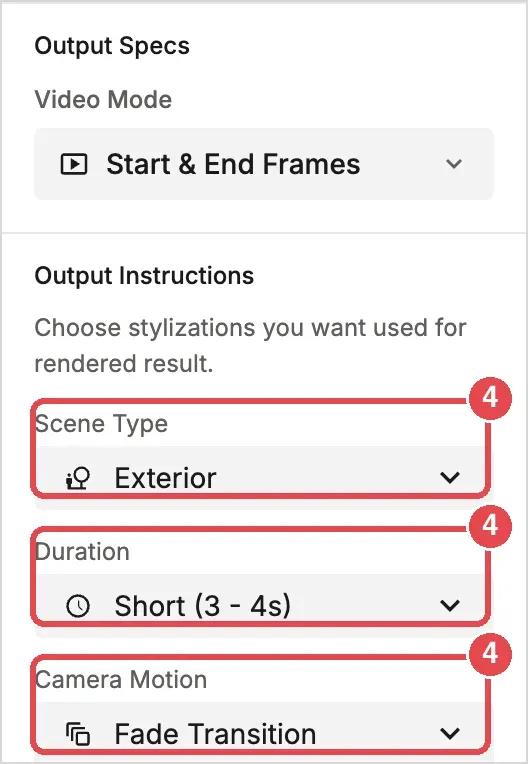
- Set the Output Instructions: Choose the Scene Type, Duration and Camera Motion.
- Generate: Click Generate (150 credits). It takes a minute or two.
Camera Motions You Can Choose
- Fade Transition: Smoothly switches between two scenes.
- Angle Movement: Moves the viewpoint.
- Entering Indoor: Moves from the exterior into the interior (Exterior scenes only).
- Flow of time: Shows a change in time, such as day to night.
- Flow of Seasons: Shows the change of seasons.
💡 Tip: This mode is great for storytelling effects such as Entering Indoor and Flow of time.