
Tone Adjustment
Fine-tune brightness, saturation and more with sliders. This doesn't use any credits.
Tone Adjustment is a mode for fine-tuning brightness, saturation and more with sliders. It's different from the Recolor action, which changes colors with AI, and it doesn't use credits. It's ideal for final touch-ups.
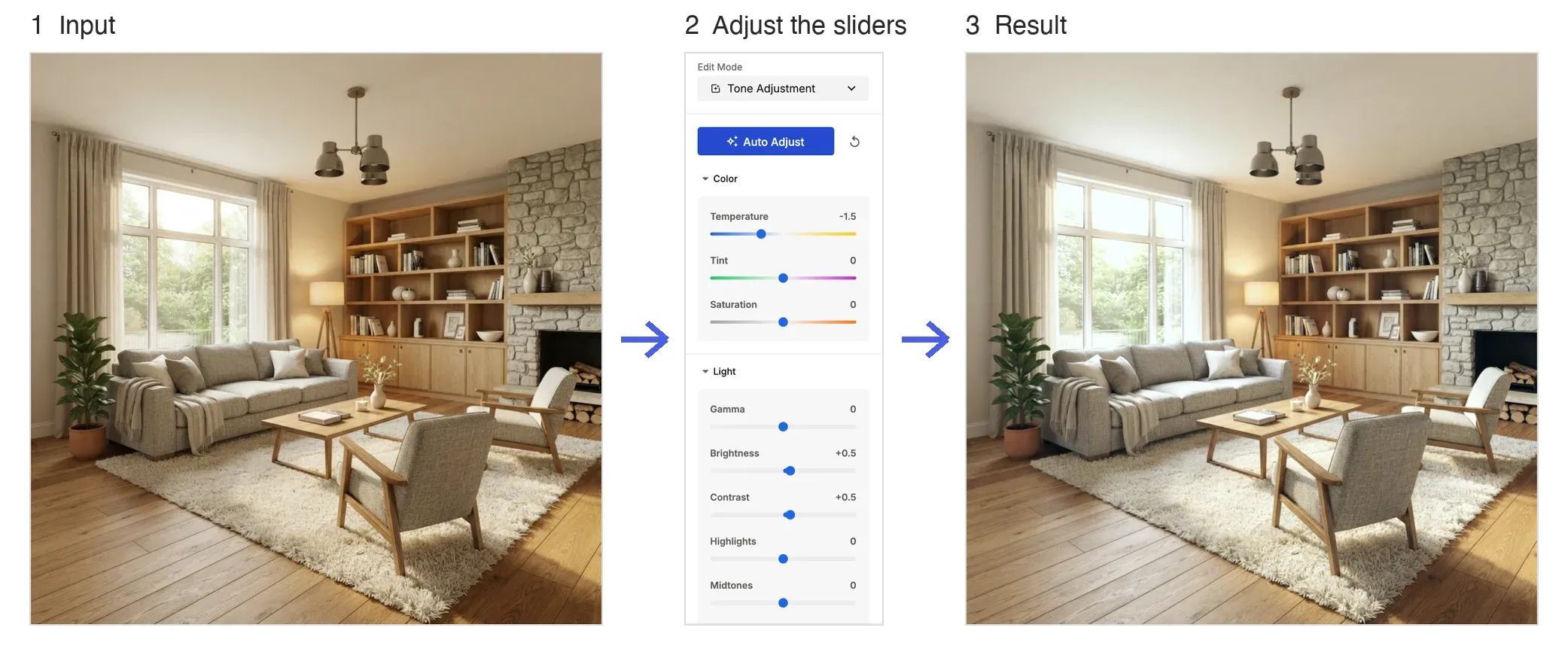
What You Can Adjust
- Color: Temperature / Tint / Saturation
- Light: Gamma / Brightness / Contrast / Highlights / Midtones / Shadows / Whites / Blacks
- Advanced Settings: Texture / Clarity / Dehaze / Black Mist
Each slider runs from -5 to +5, and the image updates as you drag. Auto Adjust sets the sliders for you, and the reset icon next to it puts every slider back to 0.
How to Use
- Open the Edit tab with the image you want to adjust.
- Choose Tone Adjustment under Edit Mode.
- Drag the sliders, or click Auto Adjust.
- Click Save Changes (0 credits).
💡 Tip: This mode is free. Try Tone Adjustment first before running the image through the AI again, and you'll save credits.