
What You Can Do with ArchiX (4 Features + Home)
ArchiX is an all-in-one AI platform built for architecture that helps your architecture and interior design projects run smoothly. You can turn images into photorealistic renderings, edit them, place furniture in a space, create proposal videos, and more.
The 4 Features
- AI Render: Generates photorealistic renderings from the images you upload (photos, sketches, drawings and more).
- AI Image Editor: Edits parts of your renderings or photos, such as replacing, adding, removing or recoloring objects, so the result matches what you have in mind.
- AI Staging: Furnishes, empties or remodels rooms in photos of empty or lived-in spaces.
- AI Video: Generates a short video from a single image.
All four work inside a project, as tabs named Render, Edit, Staging and Video, so you can take one image from rendering to video without leaving the page.
ArchiX also offers AI Note Taker and AI Chat (AI Communication) to support your meetings.
Home (Your Starting Point)
Home is the first screen you see after logging in. It has four starting points:
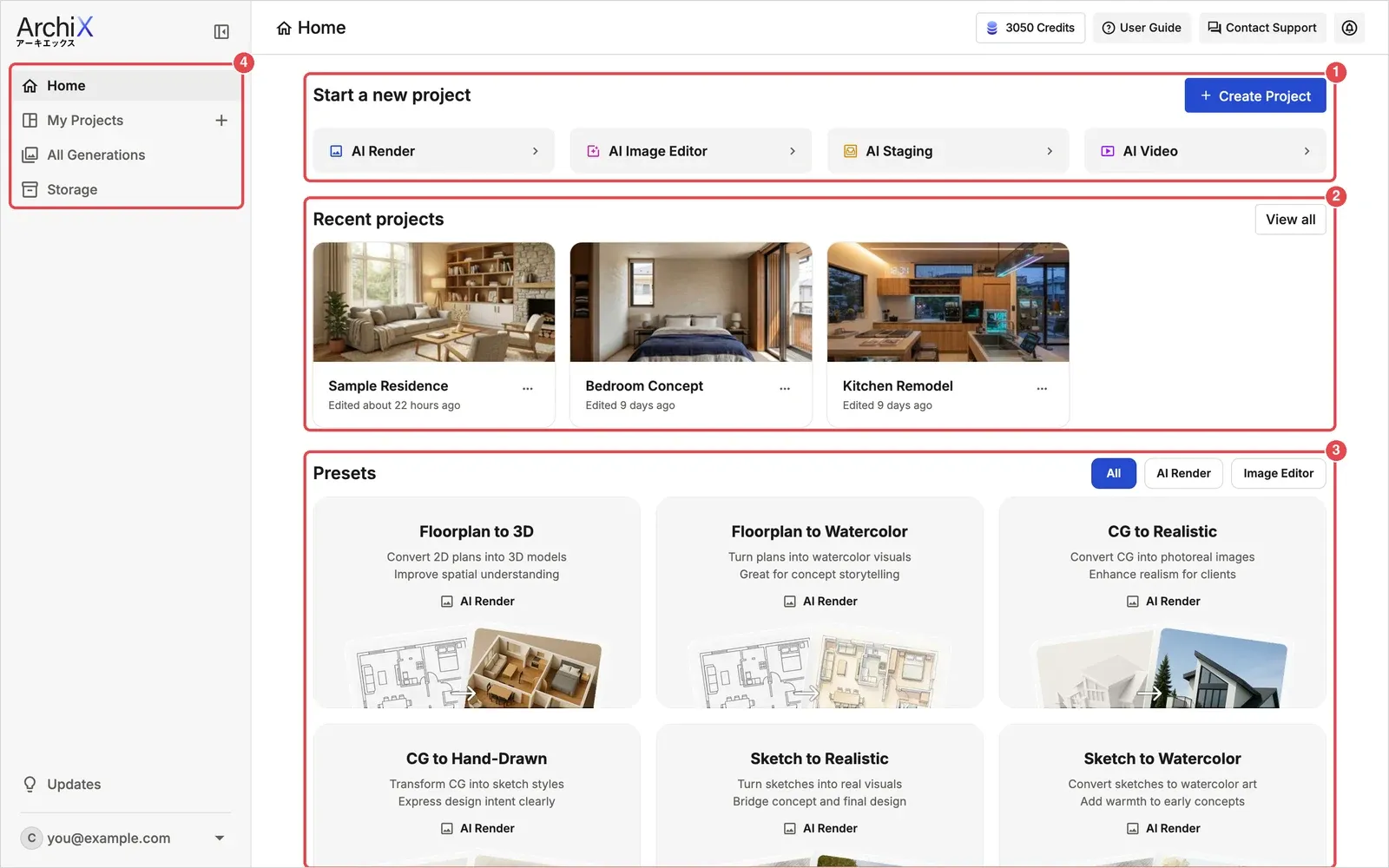
- Start a new project: Click Create Project, or one of the AI Render, AI Image Editor, AI Staging or AI Video tiles, to open a new project on that tool.

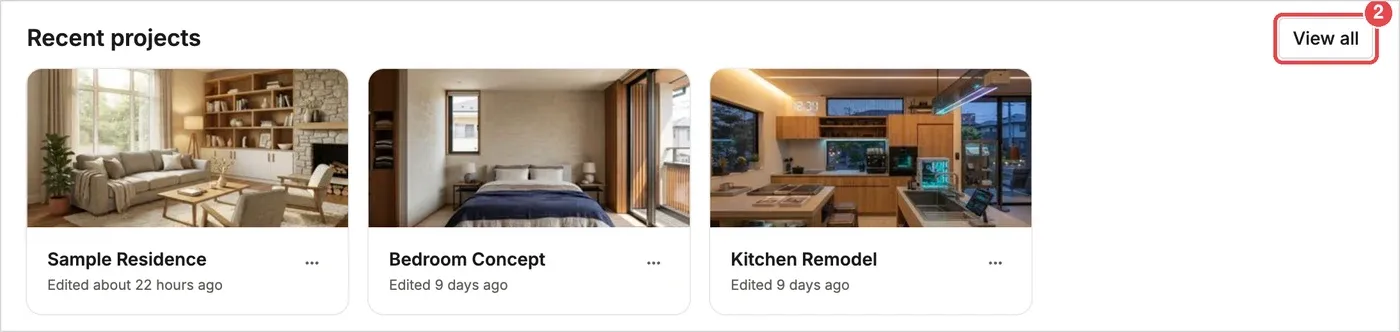
- Recent projects: Jump back into the projects you worked on last. Click View all to see every project.
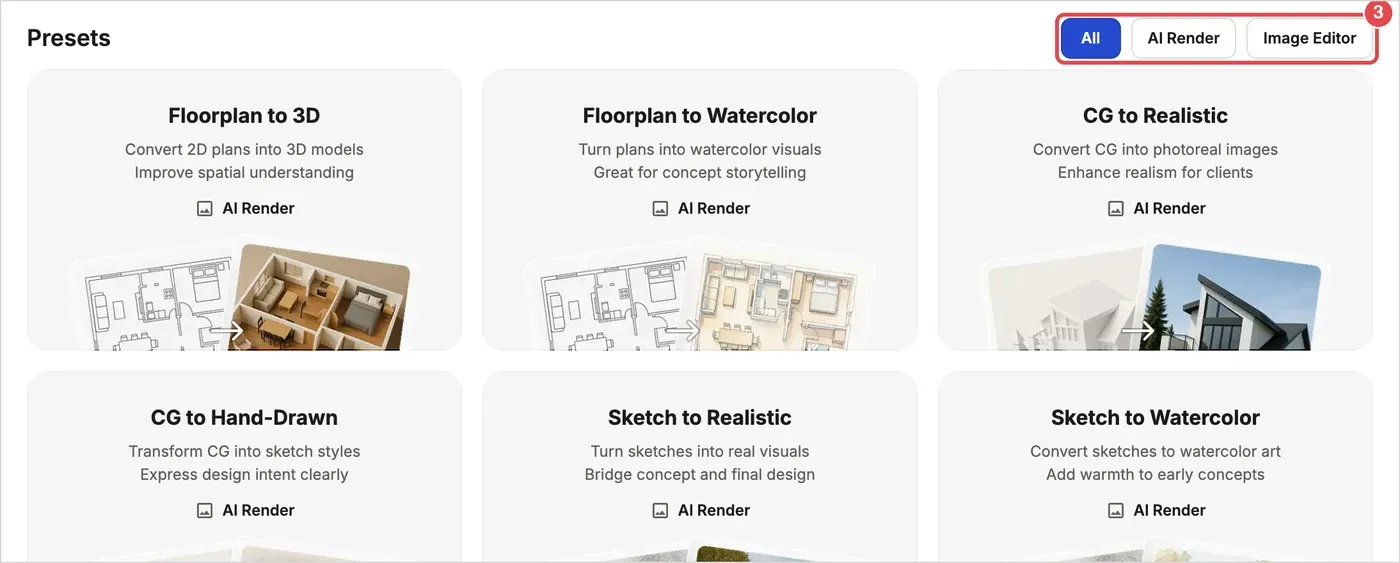
- Presets: Ready-made starting points such as Floorplan to 3D or Sketch to Realistic, with the matching settings already chosen. Use the All, AI Render and Image Editor buttons to filter them. Image Editor presets include Add Objects, Remove Objects and Change Materials.
- Sidebar: Go to Home, My Projects, All Generations and Storage.
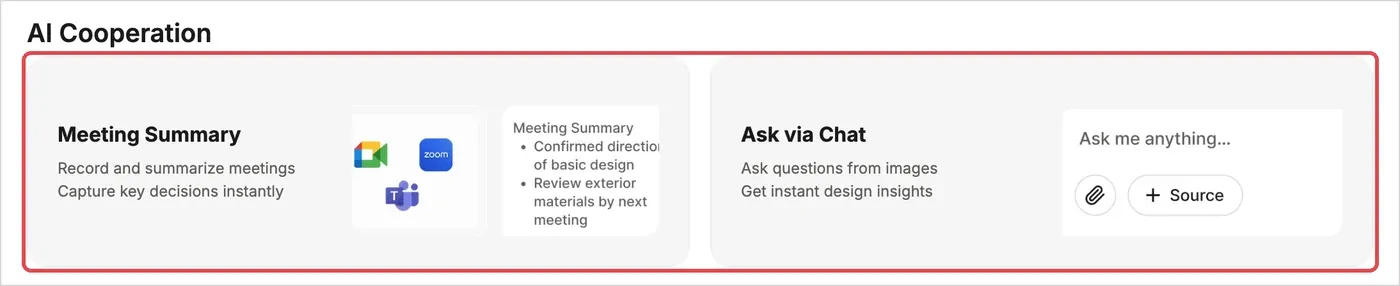
Scroll down to AI Cooperation to open Meeting Summary (AI Note Taker) or Ask via Chat (AI Chat), if your plan includes them.
💡 Tip: The quickest way to get the big picture is to create a project and generate one image on the Render tab.