
Apply Style (Restyle an Image With a Reference)
Restyle a whole image to match a preset or your own reference image.
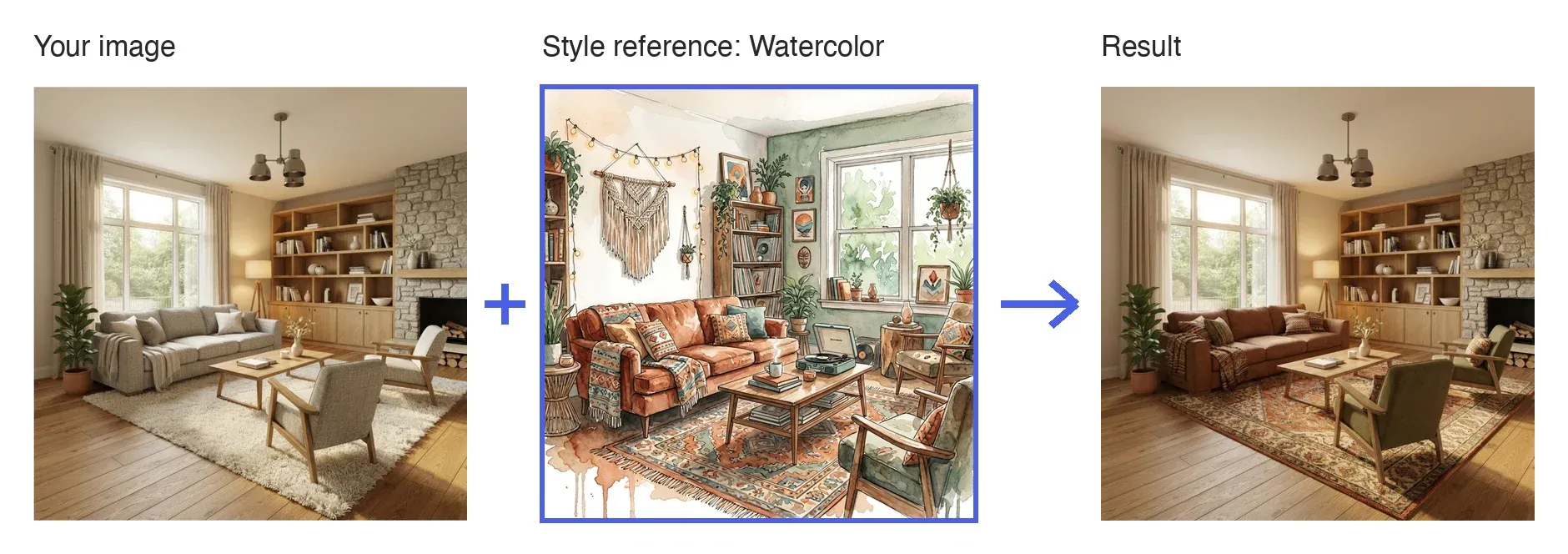
Apply Style is an edit mode that restyles the whole image based on a style reference. The layout of the space stays the same, while the colors, materials and furnishings follow the reference.
How to Use
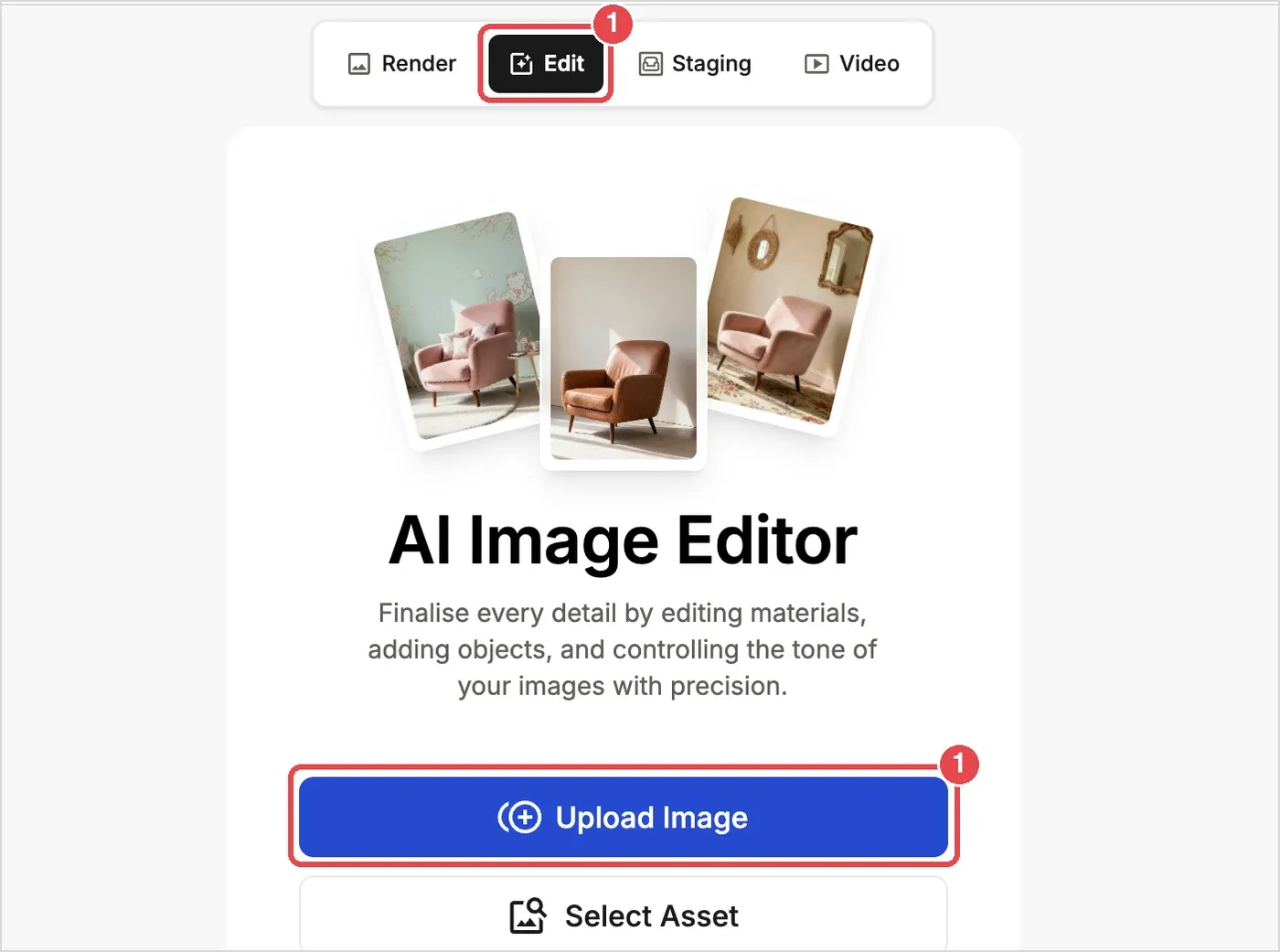
- Open the editor: Open the Edit tab in a project and load your image with Upload Image or Select Asset.
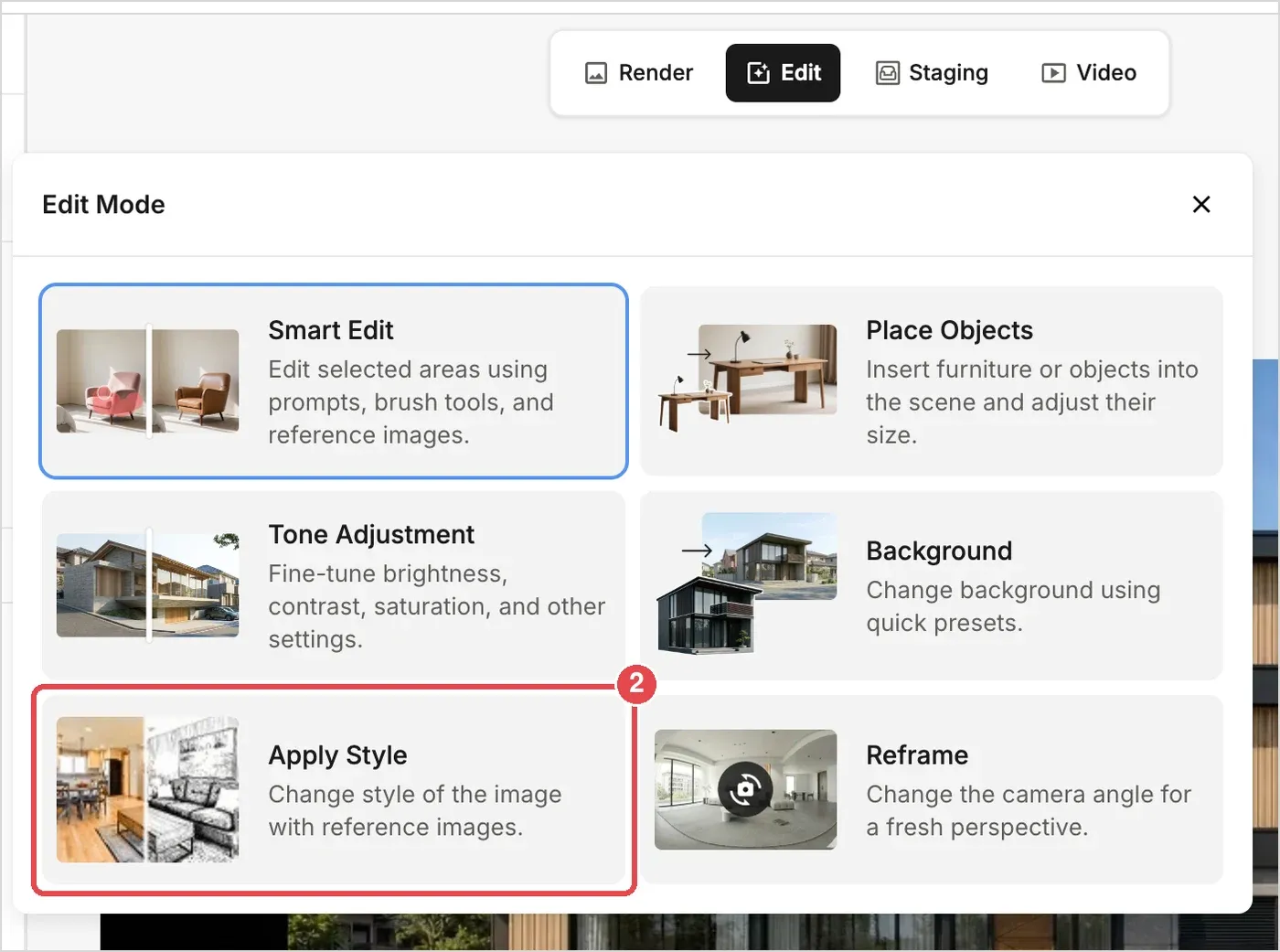
- Choose Apply Style: Open the Edit Mode menu and select Apply Style.
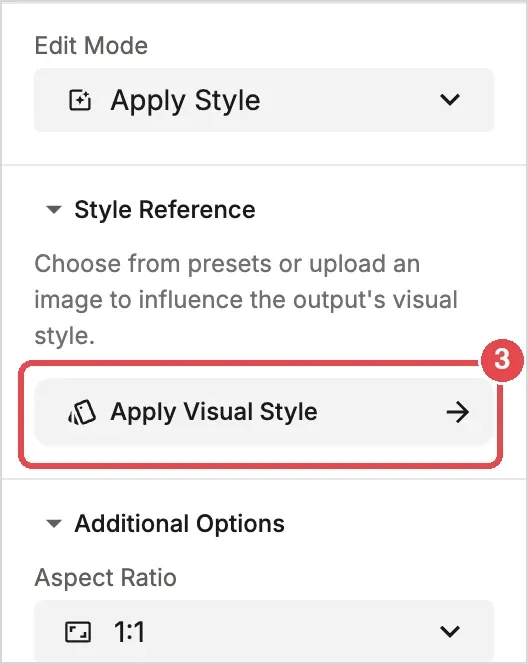
- Open the style picker: Under Style Reference, click Apply Visual Style.
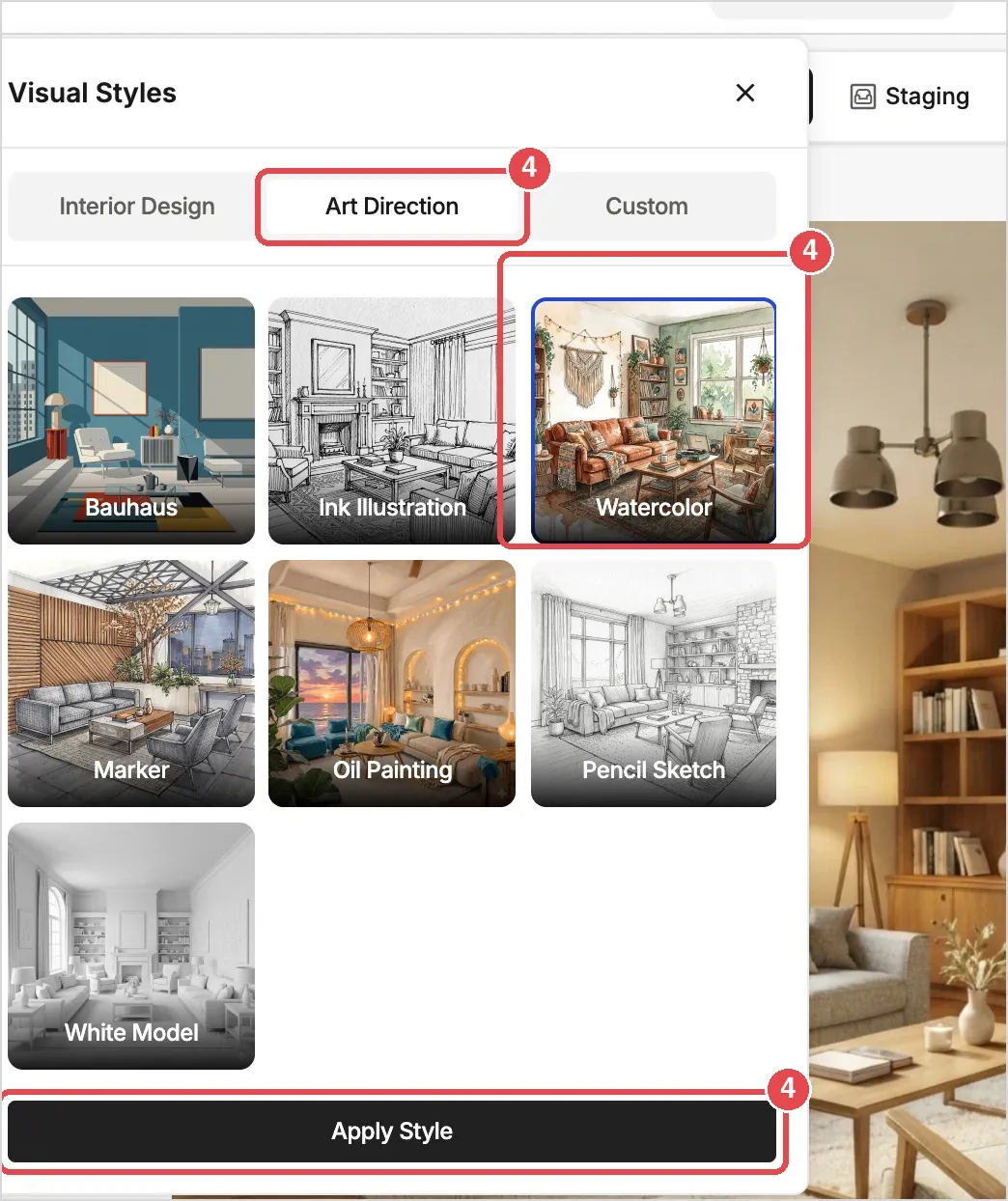
- Pick a style: In the Visual Styles window, choose a tab, select a style and click Apply Style.
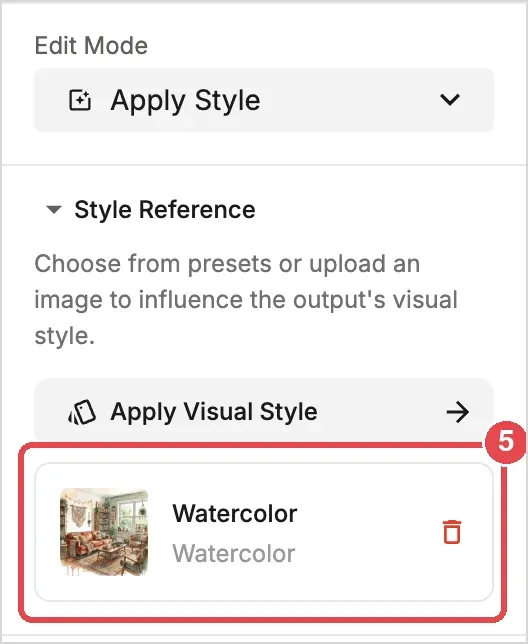
- Check the reference: The style you chose appears under Style Reference. Click the trash icon to remove it.
- Generate: Click Generate (20 credits).
Style Tabs
- Interior Design: 14 interior presets, such as Nordic Design, Japandi, Modern Classic, Soft Minimalism, Modern Zen and Wabi-Sabi.
- Art Direction: Bauhaus, Ink Illustration, Watercolor, Marker, Oil Painting, Pencil Sketch and White Model.
- Custom: Upload your own reference image.
💡 Tip: Apply Style carries over the reference's colors, materials and furnishings while keeping your layout. It doesn't turn the image into a painting: in our test, the Watercolor reference produced a restyled photorealistic room. To create a watercolor, sketch or marker rendering, use Style on the Render tab instead.