
Try It: Stage an Empty Room
A quick tutorial on placing furniture in a photo of an empty room to make it look inviting.
Here, you add furniture to a photo of a vacant room so it looks like an attractive living space. You'll walk through the whole AI Staging workflow.
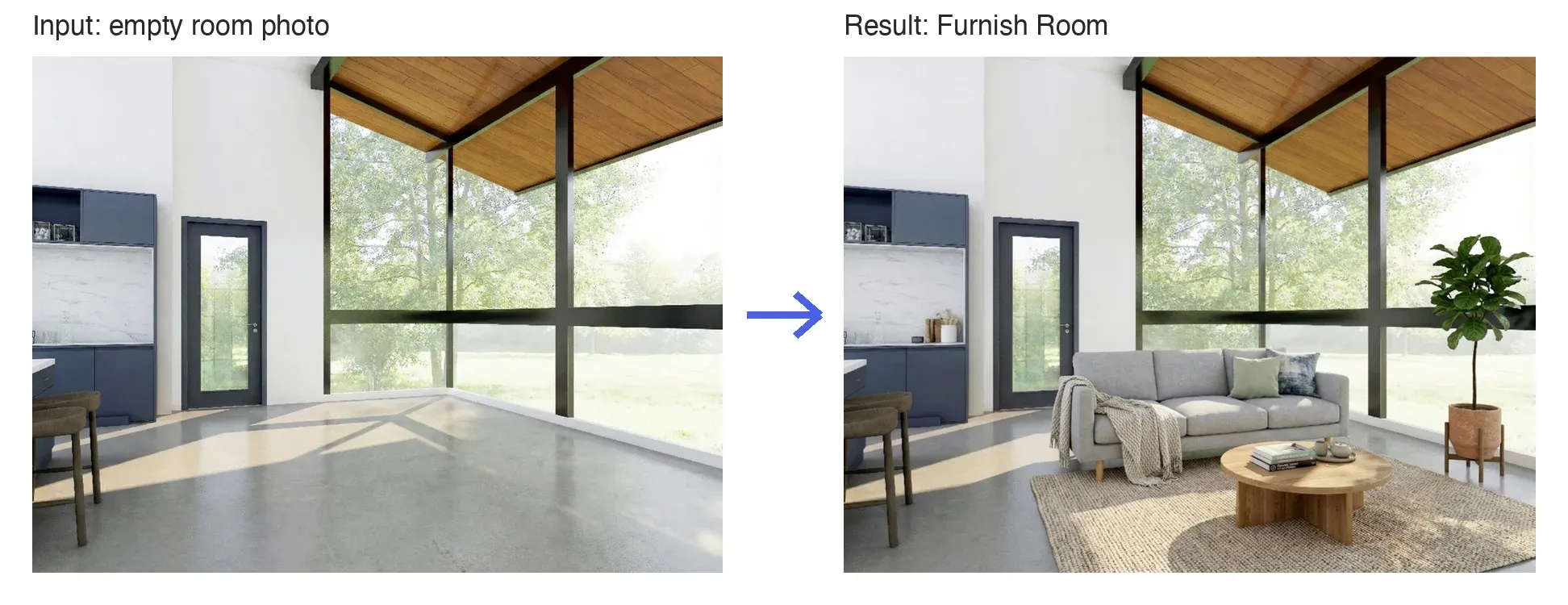
How to Use It
- Open AI Staging: On Home, click the AI Staging tile. A new project opens on the Staging tab.

- Upload an interior photo: Load a photo of the empty room.
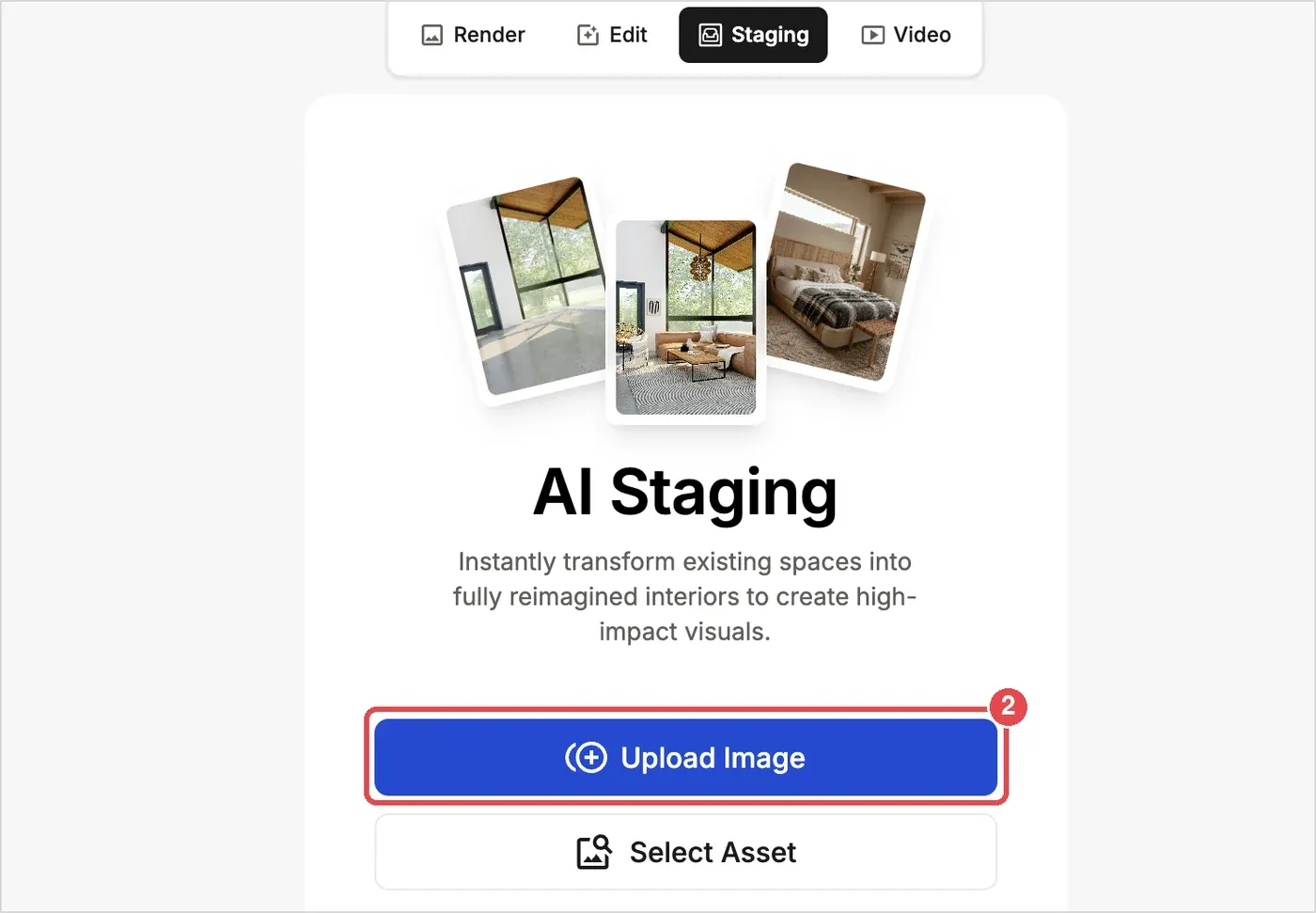
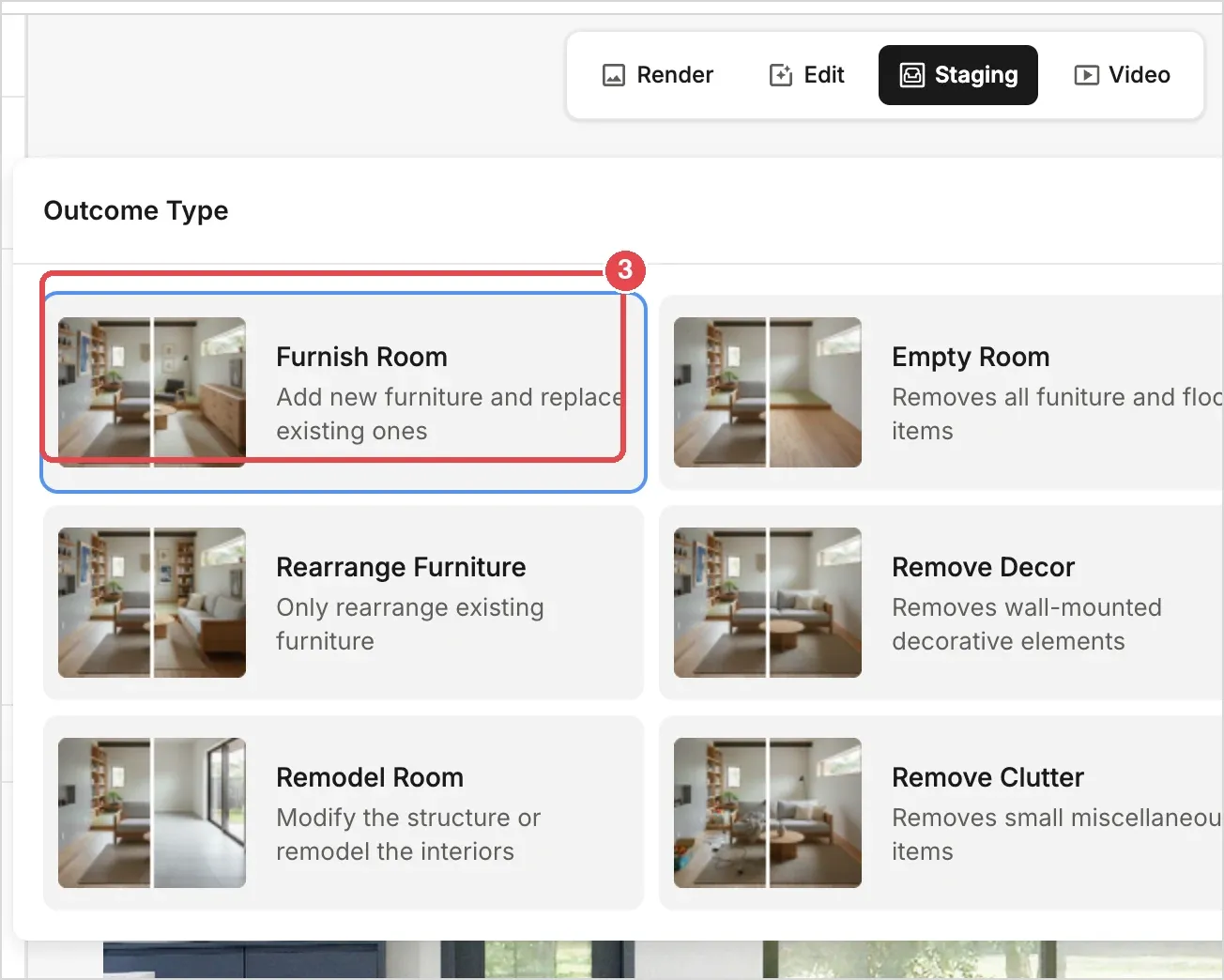
- Choose the Staging Mode: Select Furnish Room.
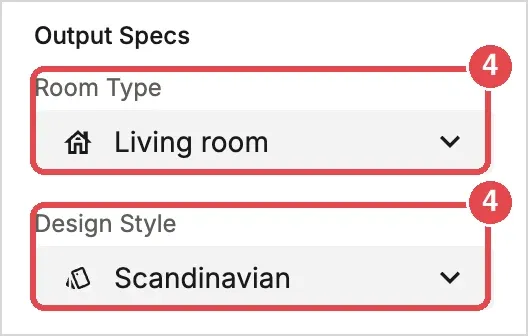
- Set the Output Specs: Choose a Room Type and a Design Style.
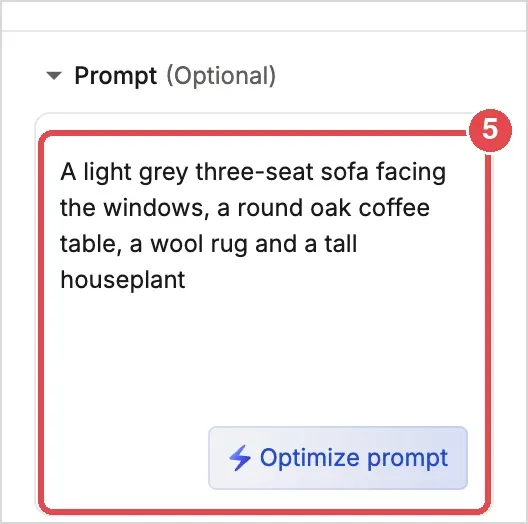
- Enter a prompt: Describe the furniture and mood you want in specific terms.
- Generate: Click the Generate button (this can take up to a few minutes).
💡 Tip: If you don't enter a prompt, the AI chooses the furniture for you. If you have something specific in mind, describe the furniture and mood in detail (see Key to Success: How to Write Prompts).