
Go Further with Optimize Prompt
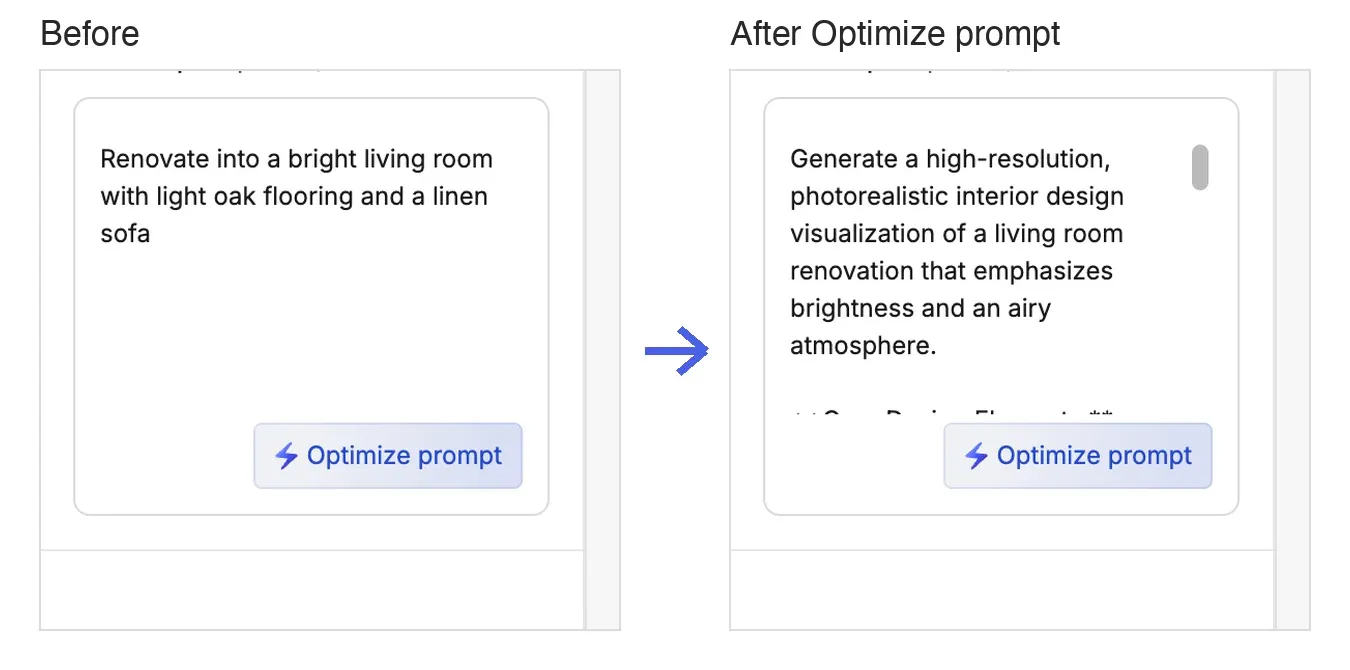
Describe what you want in words, then refine it with the Optimize prompt button.
Type the look you want into the prompt field. It's optional, but adding one makes it easier to control the result.
How to Use
- Enter a prompt: Describe how you'd like the result to look (for example, "in warm evening light" or "with lots of houseplants").
- Click Optimize prompt: Click the Optimize prompt button next to the input field, and the AI automatically rewrites your prompt based on what you wrote.
- After using Optimize prompt, always read the text to check that it matches the image you want to generate.
- Generate: Finally, generate with your refined prompt.
💡 Tip: Optimize prompt is especially helpful when you can't think of the right words. Even just listing keywords and clicking it improves accuracy. For writing tips, see the "Prompt Guide."